
How To Print Posters To Poster Printer: Artisan
Aug 11, 2026: Please be aware. We have been experiencing issues with our old poster printer, the Artisan, which was purchased in March 2019. After 7 years, once the printer is no longer functioning, printing a poster may no longer be possible in the CS department.
Where else can you print a poster?
You can print your poster at the Library, Staples, etc. Please be aware that it is not free and needs time.
IMPORTANT: As of Summer 2026, poster jobs must be released before they can be printed.
Enforced Restrictions
- Since Summer 2026, every job must be released using the Core3Release in the room.
- Only CS Faculty/Grad/Staff NetID can print to this printer. This means that if your username on your computer is NOT CS Faculty/Grad/Staff NetID, you can’t print. To print, you must authenticate with your NetID credentials.
- Poster printing is expensive. Don’t waste! Proofread before printing! For example, printing a 36″ by 48″ poster at Staples currently costs $ 66 + tax + 2 weeks’ wait + shipping.
- There is a limit of 1 poster/per 30 minutes and 5 posters/per day per NetID. To print again, you have to wait at least 30 minutes. Any jobs printed before their allowed time are ignored.
- You can cancel the job via the lprm command. For example:
lprm -Partisan your_job_id.To find out the job_id, you need to typelpq -Partisan
Important Notes
- The printer will always say No Internet Connection. This is normal because it is not accessible from the Internet (outside RUNET).
- Please don’t do anything to the printer. If the paper ever got ejected, it would take 30 minutes to feed it back to someone who knows how to load it.
Printing Recommendations
- Before printing, ensure your document is the same size as the poster size. Preview your poster in PDF so you know you are getting the correct quality when printing on large-sized paper.
- Scaling up and printing an 8.5 x 11 PDF document to a 36×48 paper will give you poor-quality output; don’t do it. It is a waste of time and resources.
- Always Give Yourself More Time. Don’t expect to get your poster done the day it is due. 100% of users who never print posters do NOT get it right the first time.
- We do not print anything for users; you must print your poster yourself.
- Set up and learn how to print a poster days before you need it.
- Do not wait until the last minute before printing your poster.
- Poster printers often run out of ink or paper, so print during work hours. Supplies may run out or need reordering, and no one can help you.
- Your job refused to print because of an incorrect setup.
- The poster printer could be jammed.
- Someone ejected the role paper, which takes a long time and is hard to reset.
- Poster printing is slow. Others may also have the same deadline as you.
- Etc.
Printing a Poster from Linux OS
- To print a poster, you need to log in to a Linux machine with a graphical user interface.
- If you are on a laptop, first transfer your poster.pdf file to your iLab home directory. You can learn how to transfer files to and from a Linux machine by visiting the Accessing Files Remotely page.
- Open a web browser session to weblogin.cs.rutgers.edu. For more information, see Using CS WebLogin to Access iLab Machines.
- Once you have a session open on one of the iLab machines,
 find and open the Atril document Viewer to print your poster. [We recommend Atril because our last test showed that Evince, the default Linux Document Viewer, has a bug that prevents you from setting the correct paper sizes.]
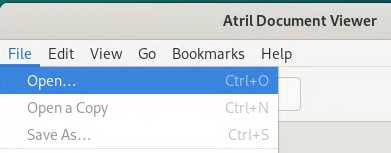
 - Once Atril Document Viewer is running, go to the File menu and select Open to open your poster PDF file.
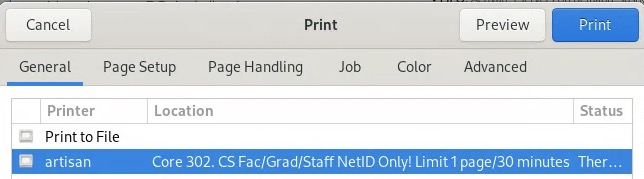
- To print your poster, go to the File menu and select Print. A list of printers will open. Select artisan. This is the poster printer.
- Click the Page Setup option at the top and select Arch E paper size.
DO NOT USE OTHER PAPER SIZE. Choosing another paper size may cause the printer to eject the paper roll, and reinstalling the paper is not trivial; it takes 30-60 minutes to calibrate.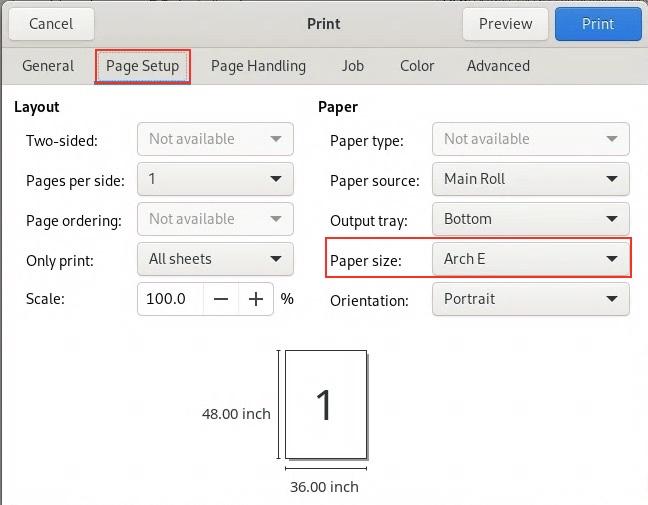
- Click Preview your job before printing. Ensure the preview shows the correct print size on the correct paper size.
- Click Print to print your job. You may be asked to verify with your NetID credentials.
- Go to the Core302 printer room and release your print job at the Core3Print Release station.
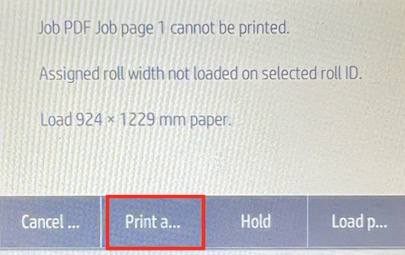
- Go to the printer and see what it is doing. If the printer panel is displayed as below, click the button. This is often caused by the printer being confused by the size of paper loaded on it.
For help with our systems or immediate assistance, contact the Operator on Duty at CoRE 235 or call 848-445-2443. Otherwise, see CS Helpdesk. Don’t forget to include your NetID along with descriptions of your problem
