
Quick Guide to CoRE A (CoRE 301) Video Conferencing Tools
Equipment in the room
- Podium Computer running Windows 11, a projector, and 2 TVs, which also function as speakers.
- Three cameras with mic, eMeet meeting microphone (default).
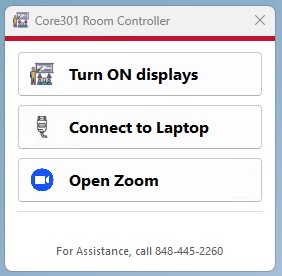
The podium computer has a controller app that helps you control the equipment in the room as shown.
Details on the buttons:
button will:
- Turn on the room’s displays and set the default input and volume level.
- By default, the TVs and Projector mirror the podium computer.
- In the event of failure, please manually turn on the TV and the projector.
button will display your laptop screen on the room’s displays.
button will:
- Run Zoom with default eMeet microphone, speaker, and camera settings.
- You will need to join the Zoom Meeting using your Zoom Meeting ID and password.
Presenting from your laptop to people in the room only.
- Turn on the displays in the room.
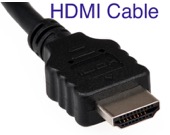
- Plug the HDMI cable into your laptop.
- Click the button to display your laptop screen on the displays in the room
Presenting for both local and remote users.
- Turn on the displays in the room.
- Join both your laptop and the podium computer to the same Zoom Meeting ID.
- On the laptop, mute your microphone. You will be using the microphone and speaker connected to the podium computer.
- Share your presentation window with Zoom attendees.
To learn more about Zoom, Teams, and Webex video conferencing support at Rutgers, see SAS Conferencing Support.
For help with our systems or immediate assistance, call 848-445-2443. Otherwise, see CS HelpDesk. Don’t forget to include your NetID along with descriptions of your problem
